Prepare a portrait product photo for an Instagram feed post
Crop a product photo for a portrait canvas without cutting off the feature buyers need to inspect.
A taller frame gives room for context, but the product detail still has to survive the crop.
The problem behind the post
A single product photo may be reused on a website, in a square catalog, and in a portrait feed post. Cropping it mechanically can remove a handle, label, or scale reference. Before opening the resizer, identify what a viewer must see to understand the item. The answer may be the texture, the full silhouette, or the product in use.
A practical way to handle it
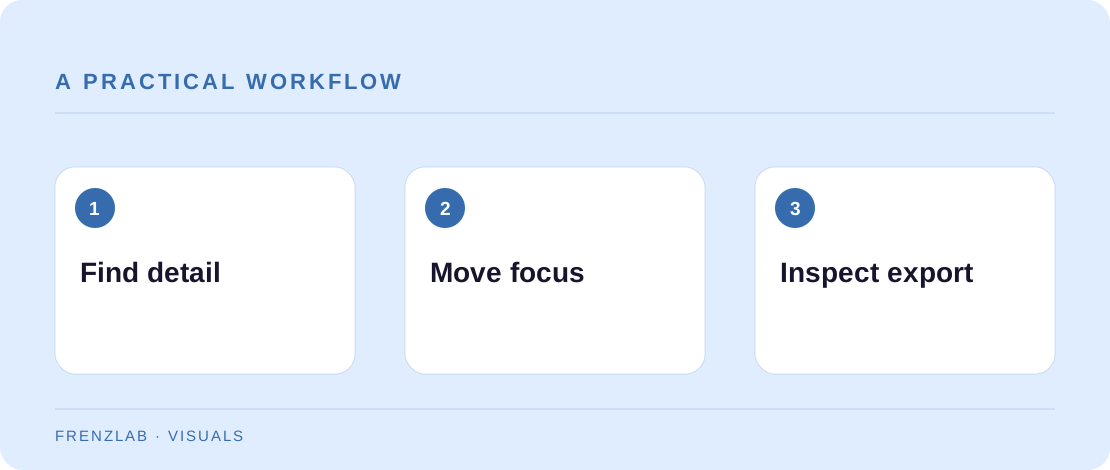
Upload the highest-quality original you have and choose the portrait canvas. Move the crop focus upward or downward only to protect the important detail. Inspect the preview with the caption in mind: if the caption discusses a hand-stitched seam, the seam should be visible. Leave margins around any text placed in the image so app controls and previews are less likely to cover it.
Download the JPG and compare it with the original at normal phone size. Is the item still easy to identify? Are colors and texture represented fairly? If a crop cannot fit the whole subject, use a different source photo or a multi-image post rather than squeezing the wrong frame. The resizer runs locally, so the original is not uploaded to Frenzlab.
A worked example
A leather goods maker photographs a wallet open on a table. A centered portrait crop removes the card slots on one side. Shifting the focus toward the open wallet keeps the internal layout visible. The caption can then explain how many cards fit, while the image shows the actual compartments.
Before you publish
- Does the crop retain the feature described in the caption?
- Have you checked the exported JPG on a phone?
- Would a different source photo work better than a forced crop?
A common mistake
Do not enlarge a tiny source file and expect a sharp result. A canvas dimension describes the export, not the detail available in the original. Use a larger original or reshoot when important texture becomes blurry.
Use the related Frenzlab tool to put this method into practice, then check the result in the destination platform.
Sources and further reading
Platform features and interfaces may change. These references were used to check the platform-specific details in this guide.
Practical, independently written guidance. If a step has changed, tell us so we can verify it.